MemoWord Tutorial
No matter what language you're learning, MemoWord is your best
sidekick for memorizing words.
With MemoWord, all your words and phrases are always at your
fingertips - so you can learn and review them anytime, anywhere.

MemoWord — handier than Anki and more powerful than Quizlet!

Works offline, syncs your cards across devices, lets you learn vocabulary
in multiple languages, and offers customizable settings.

Check out this quick tutorial and learn your foreign vocabulary
faster, easier, and more effectively

Need help? Reach out! HELP@MemoWordApp.com
1/16
Sign in to the app
When you install the app for the first time, you can start using it
without signing up or buying a subscription.

For the first three days, all Premium features are available
to you for free.

After that, the app switches to the free version with some limits.
To get Premium features back, just buy a Premium subscription
or enter a promo code.

Don't forget to register your email in Settings ->
Account & Subscription.

When you sign in again, just enter that registered email — and
all your cards will be loaded onto your new device.
2/16
Language profil
Create your first language profile — choose the language pair
for your cards and sets.

The base language is your native language (or the language
you're learning from). The target language is the one you're studying.

You can add more language profiles later and switch between them
in the settings.

Some features may vary depending on the language -
pronunciation is available only if voice packs for your chosen
languages are installed on your device.
3/16
Add flashcards
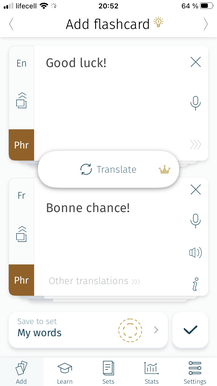
MemoWord lets you add new words on the fly - that's what
the
"Add flashcard" screen is for.

Type a word or phrase in either the top or bottom field, depending
on the language.
You can also use the dictation feature for convenience.

Tap the button
"Translate" in the center and check the translation.
If it's not quite right, feel free to adjust it — machine translations
can sometimes be off, just like with any other tool.

Keep an eye on the
"Other meanings" label. If it's highlighted,
you can open the list of alternative translations and pick the one
you need.
4/16
The "Add Flashcard" screen comes with plenty of handy features:

   use
dictation to fill in the fields;
   assign a
part of speech and change the color tag;
   hear words
pronunciation (for languages with Text-to-Speech);
  
add notes, usage examples, or memory hooks.

You can save a card to
one or multiple sets.

By default, new cards go to the "My Words" set, but you can create
and choose any other set instead.

Tap the checkmark in the bottom right corner — your card is saved.
5/16
Handy features
Cards in the Set
Go to the "Sets" screen, find the "My Words" set, andopen it.
Your card should be there.

Tap a row to edit the card. Long press to hear it pronounced.

Swipe the row right from the left edge — you can mark the card
as "Know", "Difficult" or "Repeat". Depending on the status, cards
show up more or less often.

Swipe the row left from the right edge - you can delete or edit
the card.

Check out the search bar at the top - quickly find any card.
6/16
At the top of the screen you'll find system sets:
"All Cards", «I Know", «Difficult» и «Repeat».
Cards marked with different statuses are grouped here.

Below that are the sets you've downloaded or created.

Swipe a set row to the left — you'll see these icons:

 
“Cards” takes you to the list of cards in the set
 
“Learn” opens the learning and practice modes;
 
“Delete” lets you remove the set, either with its cards or keep
them in the default set;
 
“Repeat” removes the «I Know" status from previously learned
cards and moves them to the "Repeat" set.
7/16
Vocabulary Sets
Create your own sets
MemoWord lets you create your own sets to store and learn
vocabulary. Just tap the
"Create" button
in the top left corner of the "Sets" screen.

In the window that opens, give your set a
title (required),
and add an
author and description if you like.
The last two fields are optional, but they come in handy if you
want to share the set with friends or students.

Below that, you'll find a checkbox for
importing cards from Excel,
along with format instructions to make sure your list uploads
correctly. The app supports files with up to 300 entries.
8/16
Default set and Ready-made sets
9/16
The set where your new cards are saved by default is marked
with a yellow star.
To save cards to a different set, swipe the row of that set to the right
and tap the icon.

You can
"Share" a set with another user of the app. Just enter
their email, and they'll be able to download your set.

Tap the
"Download" icon in the top right corner —
the app will load a list of sets available for download.

Ready-made sets aren't available for all languages yet, but the collection
is growing.
Ready-made vocabulary sets by topic
Most sets are free for users with a Premium subscription. However,
some sets require a separate purchase.

During the trial period —
the first three days — you can download
one of the free sets.

When choosing a set, you can search by vocabulary level or
specific topics.

For example, cards for exams and tests like
IELTS, DELE, TOEIC,
DELF, TOPIK
, as well as slang, idioms, irregular or phrasal verbs,
and more.
10/16
Memorization modes
Select the sets you want to work with at the top of the screen.

Choose a learning or testing mode the app will generate
a pool of cards from the selected sets.

The app has
six modes for working with vocabulary. Two are available
in the free version,
four with a Premium subscription.

The default settings are designed so that you first learn cards
(by marking them as
"I Know") in the learning modes, and
then move on to the testing modes.
But you can change these and other parameters in the
mode settings.
11/16
"FlashCards" — the basic mode for learning new vocabulary.

Look at the word or phrase on the card. Do you already know its
translation? Pronunciation?
Flip the card (tap the center) and check yourself.

Go through the cards in a loop, testing yourself and saying
each card out loud. If you're sure you've memorized a card,
mark it as
"I Know" — it will be removed from the pool.
For words and phrases you just can't seem to remember,
mark them as 
"Difficult" so they appear more often.

Tap the icon
"Info"at the top of the screen to learn more
about how to use the mode and what settings are available.
12/16
Flashcards — the basic learning mode
AudioСards — the mastery learning mode
In this mode, you hear the word first, without seeing it.

Try to recall the translation, tap to flip the card
and check yourself. Tap again to see the target language side.

The statuses work the same way in this mode.

We recommend using the
"I Know" status only when
you can confidently recall the translation in both directions.

If you've previously marked a card as learned but can't
remember it now —
remove the status and review the card again!
13/16
"Learn on-the-go" mode
This mode adds hours of language practice to your day!
It lets you learn words while doing chores, on a run, or driving.

If both your target and base languages support Text-To-Speech,
you can choose:

the
number of repetitions;
the
order in which the word and its translation are played;
the
pause duration between the word and its translation
   - so you have time to recall the word on your own.

You can also turn on on-screen display of your cards while
listening to them.
14/16
"Writе" - testing mode
This mode helps you practice spelling your words.

By default, it works with cards you've already marked as
"I Know"
in either the
"FlashCards" or "AudioСards" modes.
But you can change this in the settings.

Type your translation in the middle field and tap the checkmark
to verify.

You can use hints — reveal the first letters of the word or
listen to it.

Tap the
"Info" icon next to the screen title for a detailed
description of this mode.
15/16
Settings & Preferences
16/16
MemoWord is a flexible tool that lets you tailor the word
memorization algorithm to fit your needs perfectly!

You can create additional language profiles and switch between
them whenever needed.

Adjust the settings for different modes — choose sorting options,
shuffling, or exclude learned words and phrases.

Check out the
"FAQ" section — you'll find detailed descriptions
of how each screen works and answers to common questions.

MemoWord — go beyond one language!
En|Ru
Contact us:
© 2018-2026 MemoWord. All rights reserved.
Terms of Use And Privacy Policy                      HELP@memowordapp.com
The MemoWord system for easy memorization of foreign words and expressions specifies that the functionality of the application in terms of translation, pronunciation and recorder features
in different languages depends on the built-in gadget functionality and may not be available for some foreign languages. Foreign words and phrases in MemoWord applications are translated
by software using free or paid API services by Google Translate and Microsoft Azure. The MemoWord system is not responsible for mistakes in the translation of words and phrases.
Please be sure to verify the quality of the translation.

MemoWord applications with full functionality are available in the AppStore and GooglePlay for free testing for 3 days. The user will then be asked to choose one of the Premium subscriptions or switch to the free limited version.
The application will also offer options to pay for content - ready-to-use themed sets of cards with foreign words and phrases.

Application Manager: Tikhonova Olena FOP Ukraine